

Automation modes: Suggestions only, Approval required and Autopilot
Updated
Quick answer
Automation Pilot has three modes. Suggestions only prepares changes only when you ask; Approval required prepares fixes after every audit and waits for you; Autopilot also applies the low-risk change kinds you tick, up to a daily limit. Risky changes always wait for a person, and some are never automated.
- Where
- Website menu → Autopilot → Automation Pilot
On this page
How to do it
- 1
Open Automation Pilot
Choose the website, then Automation Pilot under Autopilot.
- 2
Choose a mode
Suggestions only, Approval required or Autopilot.
- 3
Pick Autopilot permissions
In Autopilot, tick the low-risk kinds that may apply by themselves: meta title, meta description, new content draft (not published).
- 4
Set limits
Choose whether to prepare title and description fixes after each audit and the most automatic changes per day.
- 5
Save
Press Save automation settings. You can pause this website or press Emergency stop at any time.
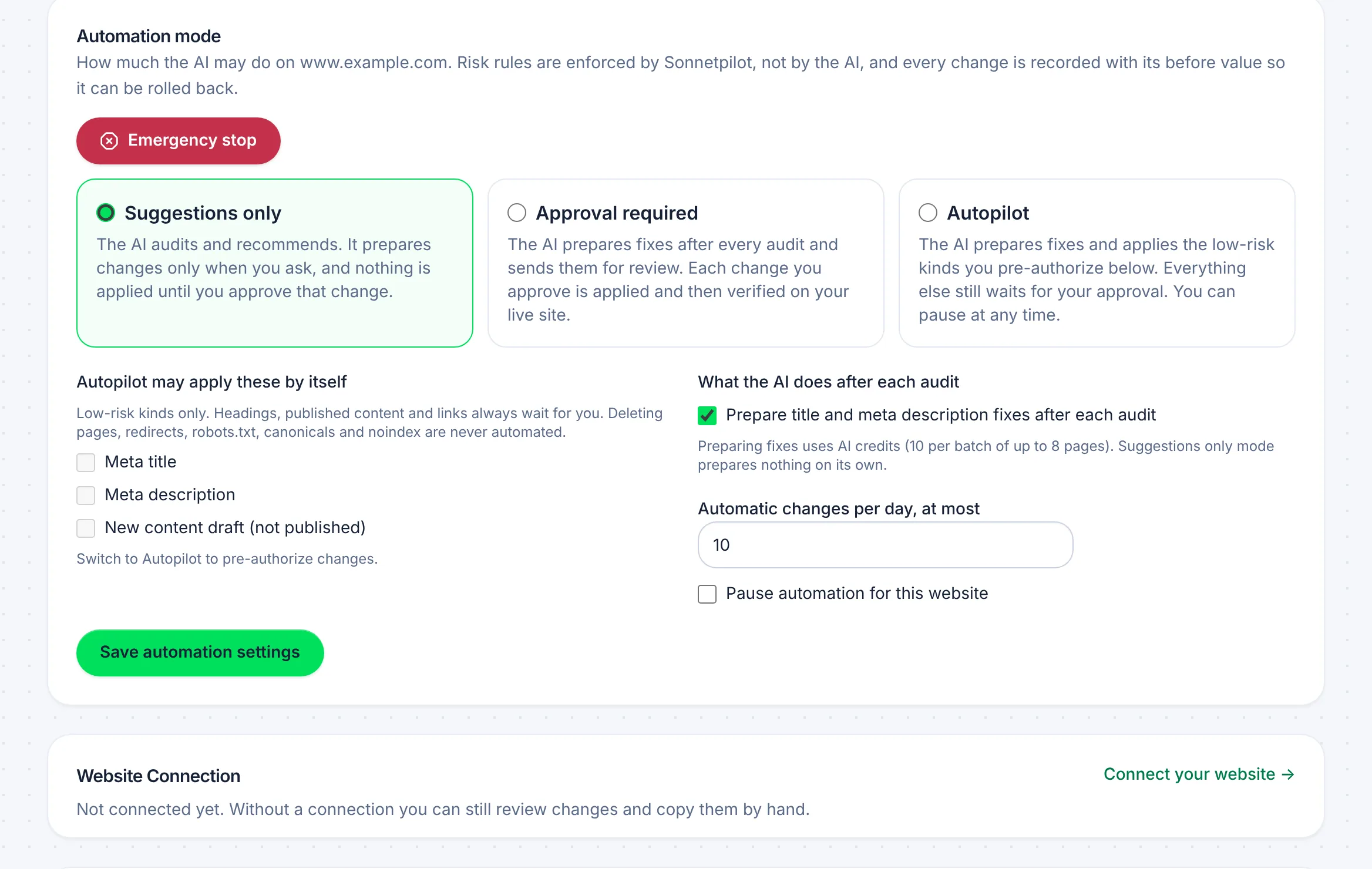
- 1Emergency stop: halts every change in the workspace.
- 2Suggestions only: nothing is prepared unless you ask.
- 3Approval required: fixes are prepared after each audit and wait for you.
- 4Autopilot: low-risk kinds you tick below can apply by themselves.
- 5The change kinds Autopilot may apply on its own.
- 6Daily cap on automatic changes.
- 7Pause this website only.
Screenshot from the Sonnetpilot app (a new workspace, before any data was collected). Open full size
Risk rules
Low risk
Can be pre-authorized for Autopilot
- Meta titles
- Meta descriptions
- Image alt text
- Unpublished drafts
Needs a person
Always waits for approval
- Page headings
- Changes to published content
- Internal links
- Publishing
Never automated
Recommended only, you make them
- Deleting pages
- Redirects
- robots.txt
- Canonical URLs and noindex
The three modes
- Suggestions only: the AI audits and recommends. It prepares changes only when you ask, and nothing is applied until you approve that change.
- Approval required: after every audit the AI prepares fixes and emails owners and admins. Each change you approve is applied and verified.
- Autopilot: the AI prepares fixes and applies the low-risk kinds you pre-authorize, up to your daily limit. Everything else still waits for you, and a change the QA agent flagged is never auto-applied.
Pause and emergency stop
Pause automation for this website stops the AI from preparing or auto-applying changes there; changes a person approves still go ahead. Emergency stop halts every change in the whole workspace, including approved ones. Any member can press it; an owner or admin resumes.
Sonnetpilot also watches every applied change in Search Console. If a changed page gets clearly fewer clicks afterwards (at least 10 clicks before, under 60% of that after), you get an alert. If Autopilot made that change by itself, Autopilot pauses for that website until you look. A drop can have other causes, such as season or a Google update, so compare it with the whole site before you roll back.
Monthly limits
Each plan has a monthly limit on automated website changes. An approved change over the limit fails with a clear reason and can be retried after the reset. Usage is on the Billing page.
Frequently asked questions
Which automation mode should I start with?
Approval required. You see every fix before it goes live, and you can move to Autopilot for titles and descriptions once you trust the results.
Can Autopilot delete pages or add redirects?
No. Deleting pages, redirects, robots.txt, canonical URLs and noindex are never automated. Sonnetpilot may recommend them, but you make them yourself.
What does the emergency stop do?
It halts every change in the workspace, including approved ones, until an owner or admin resumes.
Related guides
- Approve, verify and roll back changesHow a Sonnetpilot change request moves from proposal to QA check, approval, apply and live verification, and how to undo it.
- Build workflows that run SEO tasks on a scheduleCreate Sonnetpilot workflows with triggers, conditions on your real data, and steps like audits, fixes, approvals and email summaries.
- Let clients approve changes with a private linkCreate a branded approval page so clients can approve or reject website changes without a Sonnetpilot account.
- Connect your website so fixes can be appliedChoose how Sonnetpilot applies approved SEO changes: WordPress, Shopify, a one-line snippet, GitHub or GitLab, or your own CMS API.
Something unclear or out of date? Tell us and we'll fix the guide.