

Verify website ownership
Updated
Quick answer
Right after you add a website, Sonnetpilot runs a free, read-only preview audit of up to 25 pages. Before it runs full audits, monitors or changes anything, it verifies that you control the site. If the site is already in Google Search Console, connect the Google account that owns it and you are done. Otherwise pick DNS record, Meta tag or HTML file, add the value shown to your site, then press Check now. The first full audit starts by itself once the site is verified.
- Where
- Websites → your website → Site Overview → Verify ownership
On this page
Verify with a DNS record (recommended)
- 1
Copy your value
Open the website in Sonnetpilot. On the DNS record tab, copy the value that starts with sonnetpilot-verification=.
- 2
Add a TXT record
Sign in where your domain's DNS is managed (registrar or host) and add a TXT record on the website's hostname with that value.
- 3
Check
Return to Sonnetpilot and press Check now. DNS changes can take from a few minutes to a few hours to appear.
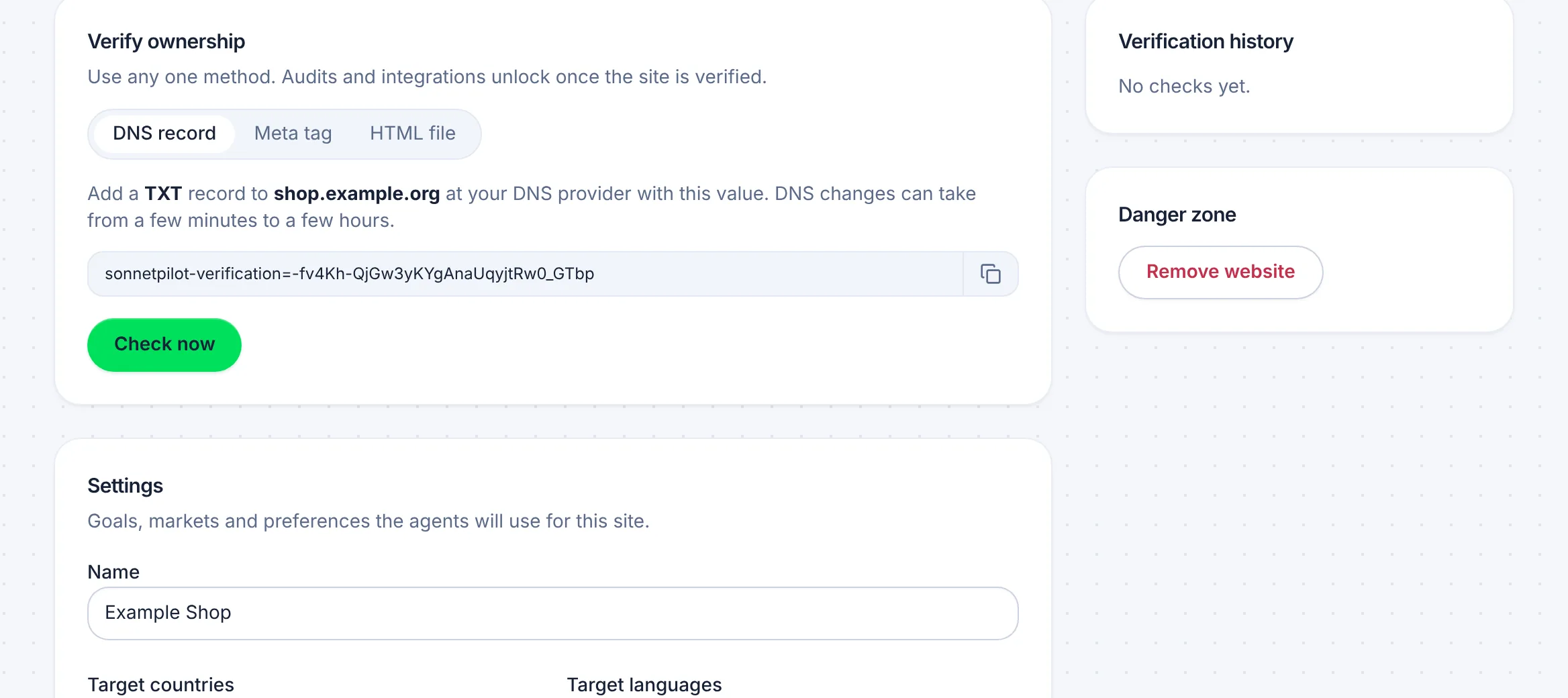
- 1Pick one method: DNS record, meta tag or HTML file.
- 2Your personal verification value. Copy it with the button on the right.
- 3Runs the check. The result says exactly what was found.
- 4Every attempt is listed here.
Screenshot from the Sonnetpilot app (a new workspace, before any data was collected). Open full size
The four methods
- Google Search Console: connect the Google account that is a verified owner of a Search Console property for the site (a Domain property or a URL-prefix property for this address). Sonnetpilot only reads the list of properties; a user who can just view the property doesn't count.
- DNS record: a TXT record with
sonnetpilot-verification=YOUR_TOKEN. We ask several public DNS resolvers and pass if any of them sees it. - Meta tag: add
<meta name="sonnetpilot-verification" content="YOUR_TOKEN" />inside the<head>of your homepage. - HTML file: upload a text file to
/sonnetpilot-verification.txtat the root of your site containing only the token.
Troubleshooting
- Each attempt is listed under Verification history on Site Settings with what we found, for example the HTTP status or the TXT values we saw (up to three), so a typo is easy to spot.
- Checks are rate limited to protect your site. Wait a minute between attempts.
- For the meta tag, make sure it is on the homepage itself, not added through a tag manager.
- Keep the record, tag or file in place after verifying.
- Added a record, tag or file named
seo-pilot-verificationbefore our rename to Sonnetpilot? It still works, so there is nothing to change.
Frequently asked questions
Why does Sonnetpilot need me to verify my website?
So nobody can fully audit, monitor or change a website they don't control. Only the one-time 25-page preview runs before verification; full audits, data connections and automation unlock after it.
Which verification method is fastest?
The meta tag and the HTML file are usually instant once your site is published. DNS records can take a few hours to appear, but they don't touch your website's code.
My DNS record is correct but verification fails. What should I do?
Wait a little and press Check now again; DNS can be slow to update. Check the values listed under Verification history for typos or extra quotes, and make sure the record is on the exact hostname you added, for example www.example.com rather than example.com.
Related guides
- Getting started with SonnetpilotSet up Sonnetpilot in about 15 minutes: create an account, add and verify your website, run the first audit and connect your data.
- About the SonnetpilotBot crawlerHow Sonnetpilot's crawler identifies itself, what it fetches, how it respects robots.txt and how to block it.
Something unclear or out of date? Tell us and we'll fix the guide.