

Let clients approve changes with a private link
Updated
Quick answer
On Automation Pilot, under Client Approval Links, type who the link is for, pick 7, 30 or 90 days and press Create link. Send the link to your client: they see the waiting changes with before and after values and QA notes, type their name, and approve or reject each one without an account.
- Where
- Website menu → Autopilot → Automation Pilot → Client Approval Links
How to do it
- 1
Name the client
In Who is it for?, type a name such as Jane at Acme.
- 2
Choose how long it works
7, 30 or 90 days. Up to 10 links can be active per website.
- 3
Create and send
Press Create link, copy it and send it to the client.
- 4
Client decides
The client types their name and approves or rejects each change. Approvals go through the normal apply-and-verify path.
- 5
Revoke when done
Revoke a link at any time from the same card.
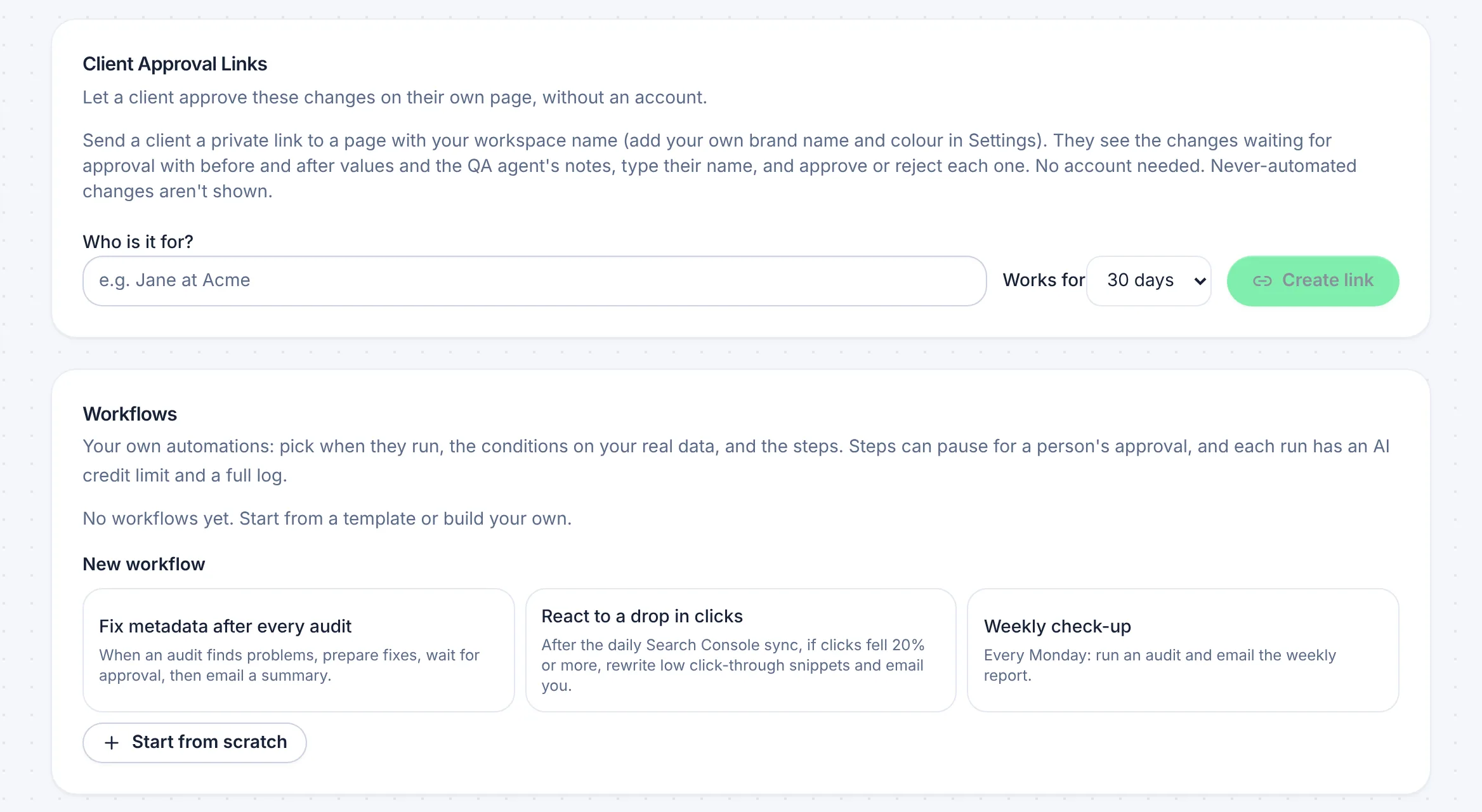
- 1Name the client the approval link is for.
- 2Creates a private link valid for 7, 30 or 90 days.
- 3Workflow templates to start from.
- 4Or build your own trigger, conditions and steps.
Screenshot from the Sonnetpilot app (a new workspace, before any data was collected). Open full size
Your brand on the page
The approval page shows your workspace's brand name and accent colour from Settings → White-label reports. Never-automated change kinds are hidden and refused.
Audit trail and privacy
Each decision is logged on the change, for example “Approved on the client approval page by Jane”, and in Activity. Only a hash of the link's token is stored, the page is hidden from search engines and it sends no referrer.
Frequently asked questions
Does my client need a Sonnetpilot account?
No. Anyone with the link can review and decide while it is valid. Revoke it when it's no longer needed.
What can a client approve?
Changes waiting for approval on that website, except never-automated kinds, which are hidden and refused.
Related guides
- Approve, verify and roll back changesHow a Sonnetpilot change request moves from proposal to QA check, approval, apply and live verification, and how to undo it.
- Run tasks on many websites at onceUse Bulk Tasks to run audits, schedule audits, prepare fixes or email reports across websites in every workspace you manage.
- Weekly, monthly and white-label SEO reportsSchedule weekly or monthly SEO report emails, print a before and after PDF, and put your agency's brand on reports.
Something unclear or out of date? Tell us and we'll fix the guide.