

Weekly, monthly and white-label SEO reports
Updated
Quick answer
Open Reports to schedule recurring audits and weekly or monthly email reports for workspace owners and admins, set alerts, and view the report on screen. Print it or save it as a PDF from your browser, and add your agency name and colour in Settings for white-label reports.
- Where
- Website menu → Results → Reports
How to do it
- 1
Schedule audits
Set Recurring site audit to weekly or monthly.
- 2
Schedule emails
Tick the weekly report (pick the day, sent after 07:00 UTC) and/or the monthly report (last 30 days, on the 1st).
- 3
Set alerts
Email when a tracked keyword drops by your threshold, falls off page one or leaves the top 100, or when an audit finds new critical issues or the health score drops.
- 4
Save
Press Save workflow.
- 5
Share
Use Print or save as PDF, Email it now, or open the Before & after report (PDF).
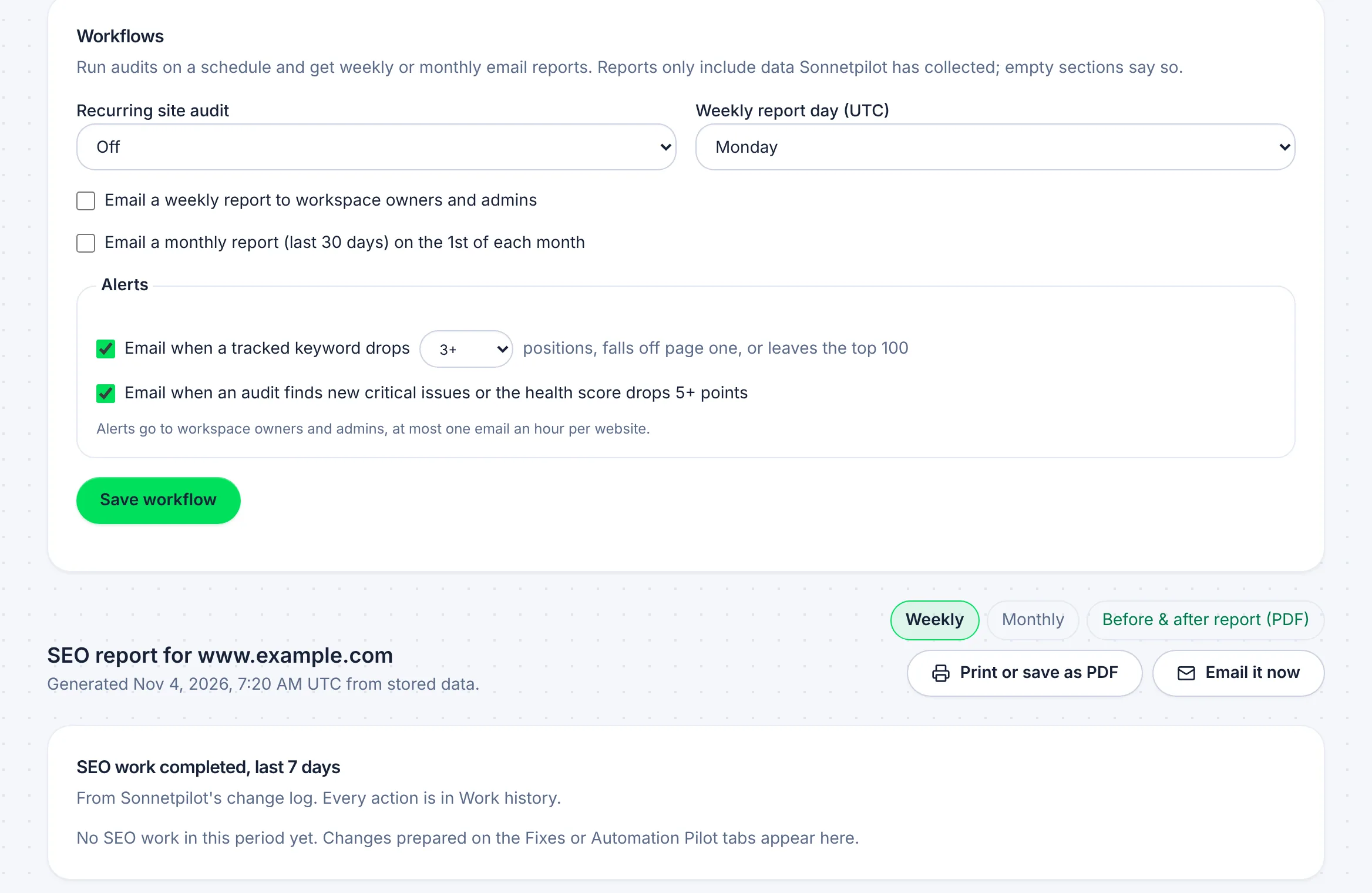
- 1Weekly or monthly audits.
- 2Weekly and monthly email reports.
- 3Alerts for ranking drops and new critical issues.
- 4Saves the schedule.
- 5Print the report or save it as a PDF.
Screenshot from the Sonnetpilot app (a new workspace, before any data was collected). Open full size
What's in a report
SEO work completed, Search Console clicks, impressions and position with the previous period, top queries, site health and issue counts, page speed, tracked keywords, content work and AI search readiness. Every number shows its source and date; sections without data say so instead of showing zeros.
White-label
In Settings → White-label reports, set Brand name on reports and an Accent colour. They replace Sonnetpilot on before and after reports, report emails and the client approval page.
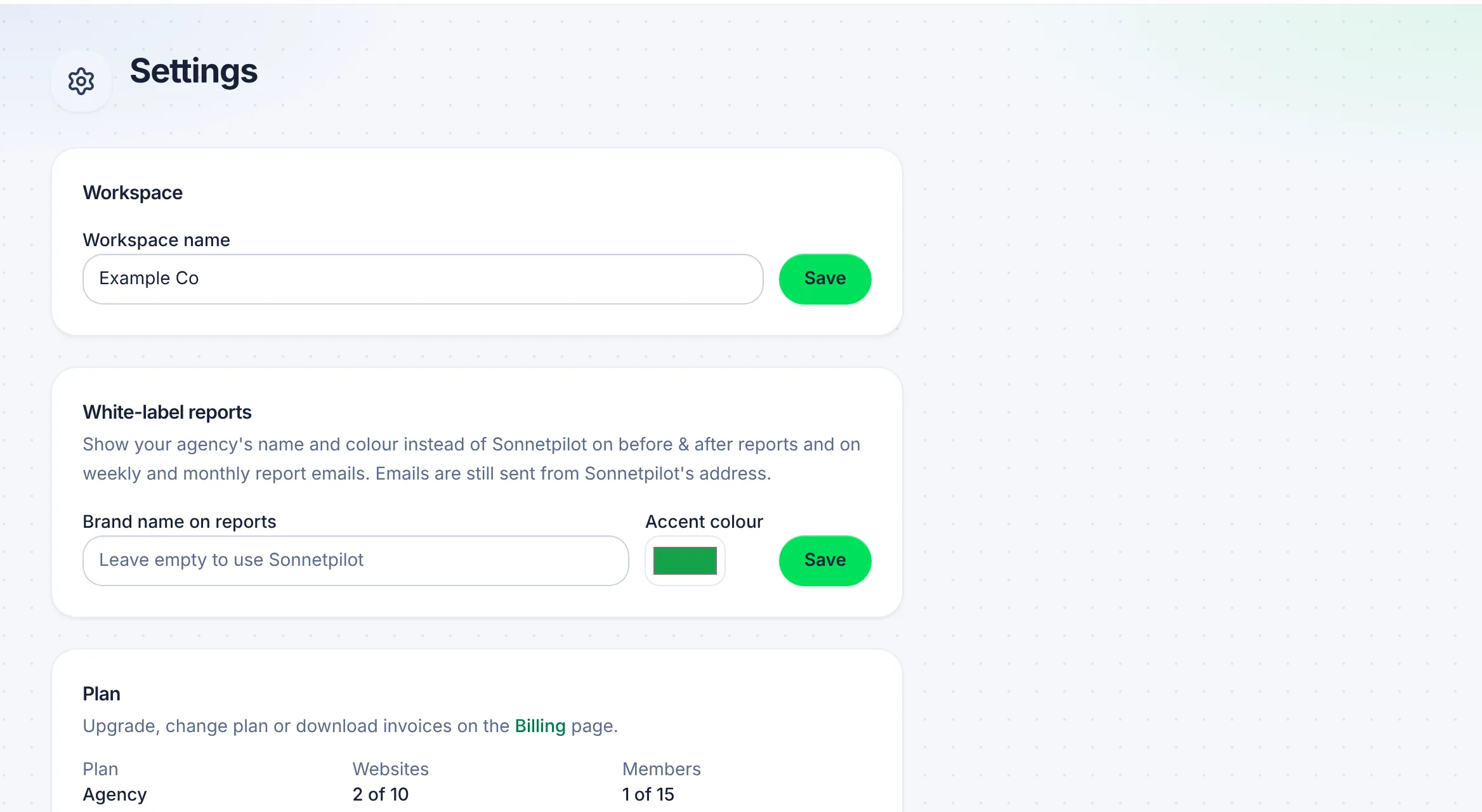
- 1Rename the workspace.
- 2White-label: your agency name on reports and the client approval page.
- 3Your brand colour.
Screenshot from the Sonnetpilot app (a new workspace, before any data was collected). Open full size
Frequently asked questions
Who receives the weekly report email?
Workspace owners and admins with a verified email address.
Can I send a report to a client?
Save it as a PDF from the report page and send it, or invite the client as a Viewer so they can see reports in the app.
Related guides
- Measure growth with before and after comparisonsCompare organic clicks, rankings, technical health and backlinks before and after a period or your baseline, with data status on every number.
- Let clients approve changes with a private linkCreate a branded approval page so clients can approve or reject website changes without a Sonnetpilot account.
- Run tasks on many websites at onceUse Bulk Tasks to run audits, schedule audits, prepare fixes or email reports across websites in every workspace you manage.
Something unclear or out of date? Tell us and we'll fix the guide.