

Invite your team: roles and permissions
Updated
Quick answer
Open Team, enter an email, pick a role and press Send invite; the invite link works for 7 days. Viewers can look, members can work on websites, admins also manage people and automation, and owners can do everything including deleting the workspace.
- Where
- Side menu → Team
On this page
How to do it
- 1
Open Team
Owners and admins can invite.
- 2
Invite
Enter the person's email, choose a role and press Send invite.
- 3
They accept
The invite link works for 7 days.
- 4
Change roles later
Change a member's role or remove them from the Members list.
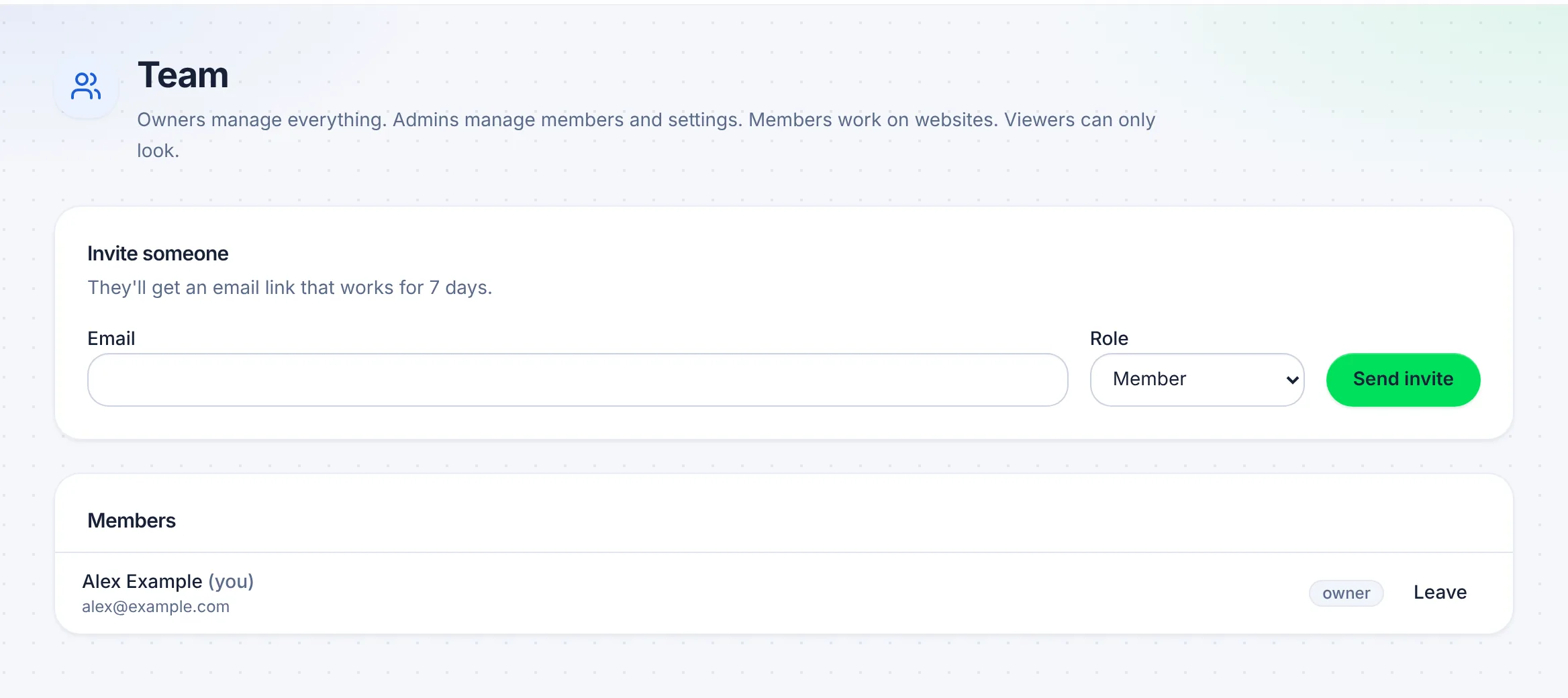
- 1Invite by email. The invite link works for 7 days.
- 2Pick a role: Viewer, Member, Admin or Owner.
- 3Everyone in this workspace and their role.
Screenshot from the Sonnetpilot app (a new workspace, before any data was collected). Open full size
What each role can do
Viewer
- See the workspace, members and websites
- Read reports and AI answers
- Good for clients and stakeholders
Member
- Everything a viewer can do
- Add websites and edit their settings
- Run verification, audits and AI tools
- Press the emergency stop
Admin and Owner
- Invite, remove and change roles
- Automation settings and resuming
- Delete websites, read the activity log
- Owner only: billing and deleting the workspace
People can only manage members with a lower role than their own, except owners, who can manage anyone. A workspace always keeps at least one owner, so the last owner can't be removed or demoted. Each plan has a member limit per workspace.
Frequently asked questions
Who can buy a plan or credits?
Only the workspace owner, with a verified email address.
Can I give a client read-only access?
Yes. Invite them as a Viewer, or send a client approval link so they can approve changes without an account.
Related guides
- Let clients approve changes with a private linkCreate a branded approval page so clients can approve or reject website changes without a Sonnetpilot account.
- Your account, password and signed-in devicesChange your name, picture and password, sign in with Google, see signed-in devices and sign out of the others.
- Plans, AI credits and billingHow Sonnetpilot plans, monthly AI credits, credit packs, usage limits, invoices and refunds work.
Something unclear or out of date? Tell us and we'll fix the guide.