

See the impact of SEO work and the full work history
Updated
Quick answer
Work History lists every change Sonnetpilot proposed or made, with the page, the original and new values, who approved it, and whether it was verified live; filter it and export CSV. The Impact page counts completed work per website and shows clicks before and after each change went live.
- Where
- Account menu → Work History, and Website menu → Results → Impact
How to do it
- 1
Open Work History
From the account menu under your avatar, choose Work History.
- 2
Filter
Choose website, action type, status and dates, then press Filter.
- 3
Export
Press Download CSV for a spreadsheet of the list.
- 4
Open Impact
On a website, open Impact for tasks completed, pages optimized and observed clicks with completed actions marked on the chart.
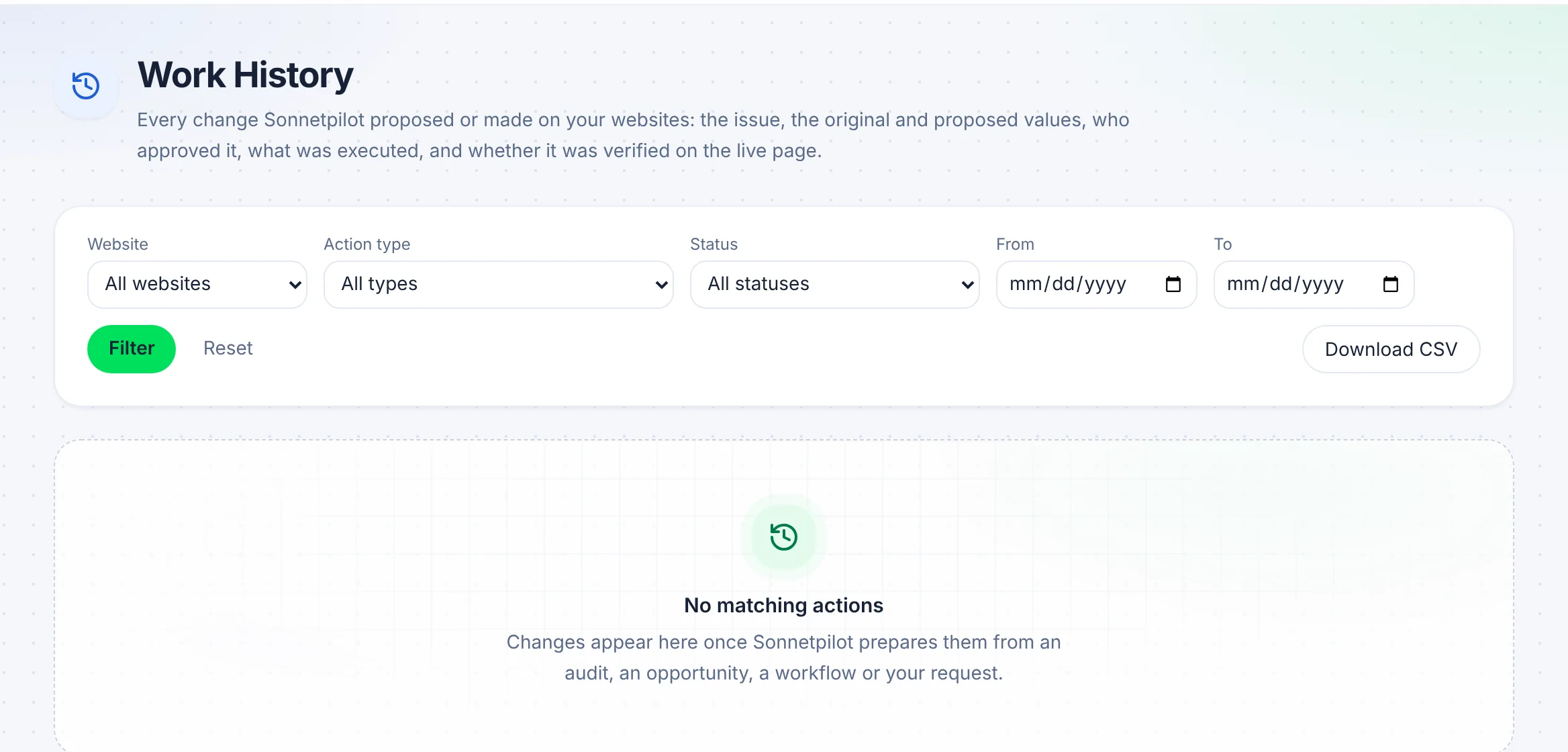
- 1Filter by website, action type, status and date.
- 2Apply the filters.
- 3Export the list as a spreadsheet.
Screenshot from the Sonnetpilot app (a new workspace, before any data was collected). Open full size
What the Impact page shows
- Work done: SEO tasks completed, pages optimized, metadata, internal link and content updates, and articles drafted and sent.
- Site health: issues resolved between audits and the health score change.
- Results observed: clicks over time with completed work marked on the chart.
- Per page: Search Console totals for the 7 and 28 days before and after each change went live, plus tracked keyword moves.
A click estimate for title and description changes is labelled as an estimate and shows how it was worked out.
Frequently asked questions
Does Sonnetpilot claim credit for traffic changes?
No. It shows observed numbers next to the work done. Other things also move traffic, so no change is attributed to Sonnetpilot alone.
Is the CSV export safe to open in Excel?
Yes. Values that could be read as spreadsheet formulas are escaped.
Related guides
- Measure growth with before and after comparisonsCompare organic clicks, rankings, technical health and backlinks before and after a period or your baseline, with data status on every number.
- Approve, verify and roll back changesHow a Sonnetpilot change request moves from proposal to QA check, approval, apply and live verification, and how to undo it.
- Weekly, monthly and white-label SEO reportsSchedule weekly or monthly SEO report emails, print a before and after PDF, and put your agency's brand on reports.
Something unclear or out of date? Tell us and we'll fix the guide.