

Connect your website so fixes can be applied
Updated
Quick answer
Open Website Connection and answer “What is your website built with?”. WordPress connects with an application password, Shopify with a custom app token, and custom-coded sites can paste one line of code, connect their GitHub or GitLab repository, or point Sonnetpilot at their own CMS API.
- Where
- Website menu → Setup → Website Connection
How to do it
- 1
Open Website Connection
Choose the website, then Website Connection under Setup.
- 2
Pick what your site is built with
WordPress, Shopify, or Custom code or anything else (hand-coded, React, Next.js, Laravel, Webflow, Wix and more).
- 3
Follow the steps for that platform
Each option shows its own short setup. Credentials are encrypted and never shown again.
- 4
Check the connection
Sonnetpilot tests the connection and confirms it points at your verified website before saving.
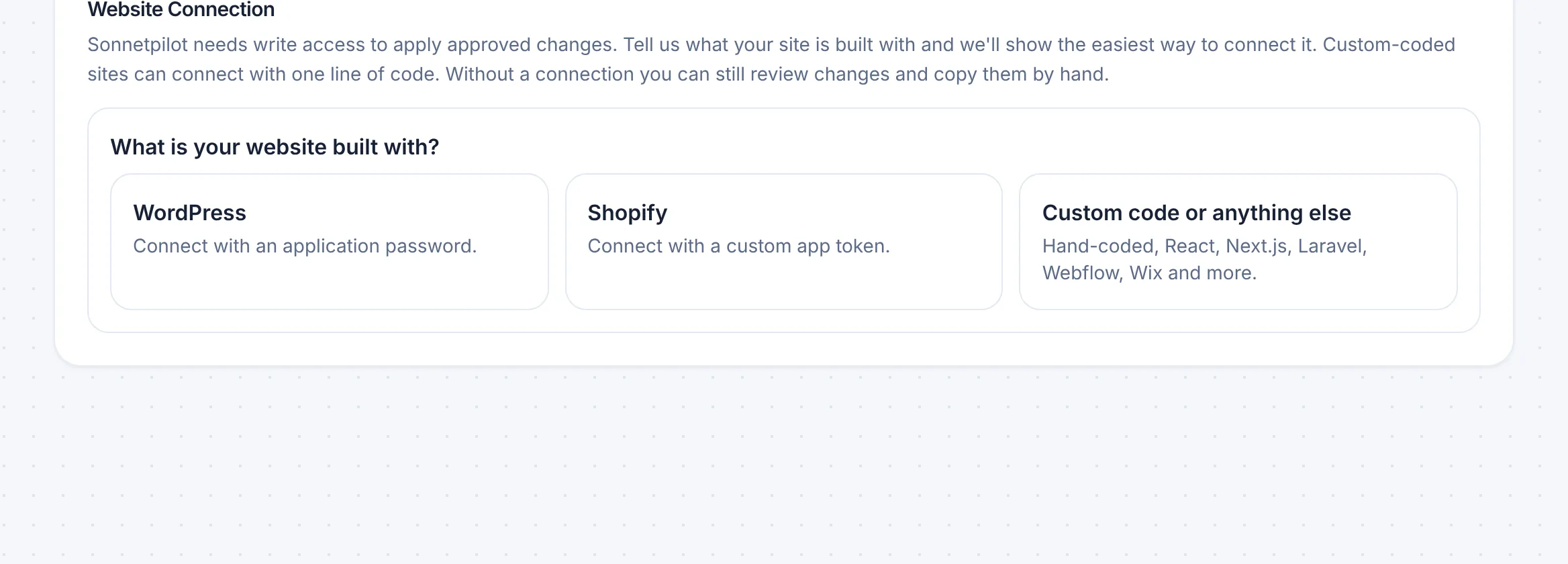
- 1WordPress: application password plus the free connector plugin.
- 2Shopify: a custom app token.
- 3Custom code: one-line snippet, GitHub/GitLab, or your own API.
Screenshot from the Sonnetpilot app (a new workspace, before any data was collected). Open full size
Which connection should I use?
WordPress
Application password + free connector plugin. Writes Yoast, Rank Math or SEOPress fields.
Shopify
Custom app token. Changes SEO titles and descriptions of products, collections, pages and articles.
Custom code: one lineEasiest
Paste the Sonnetpilot Snippet. About 2 minutes, no developer needed on most sites.
Custom code: GitHub / GitLabBest for SEO
Approved changes arrive as small pull or merge requests you merge.
Have your own CMS with an API? Use Your own CMS or API (for developers).
What a connection can change
Connections are used to apply changes you approved, such as SEO titles, meta descriptions, headings, image alt text, schema, whole page content and new pages, depending on the platform (see Site Editor). Deleting pages, redirects, robots.txt, canonical URLs and noindex are never automated. See Automation modes and risk rules.
Platform guides
- Connect WordPress
- Connect Shopify
- Install the Sonnetpilot Snippet
- Connect GitHub or GitLab
- Connect your own CMS or API
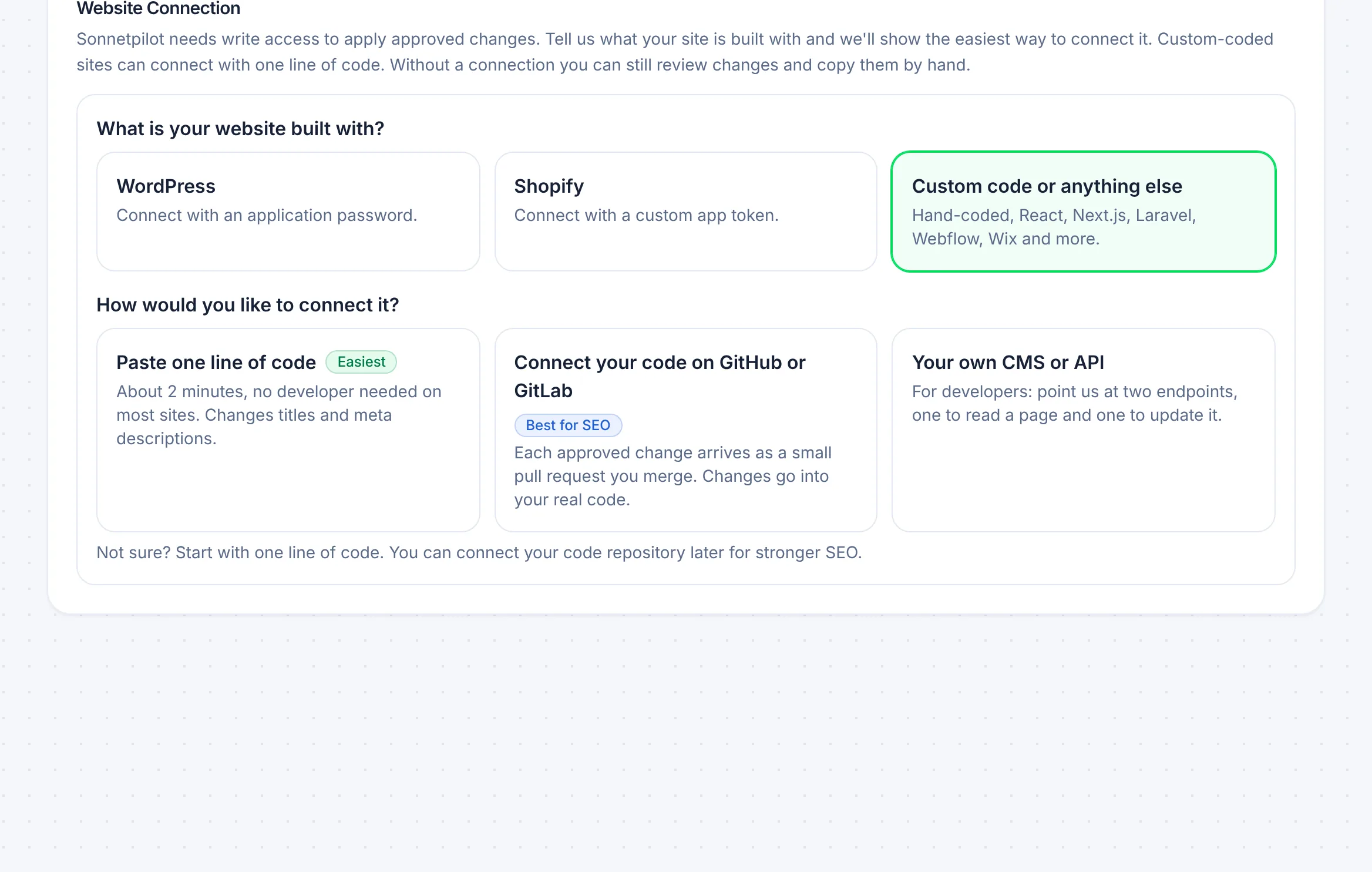
- 1Easiest: add the Sonnetpilot Snippet to your pages.
- 2Best for SEO: approved changes arrive as pull or merge requests.
- 3For developers: map your CMS's read and update endpoints.
Screenshot from the Sonnetpilot app (a new workspace, before any data was collected). Open full size
Frequently asked questions
Do I have to connect my website to use Sonnetpilot?
No. Audits, data, plans and suggestions work without it. A connection only lets Sonnetpilot apply the changes you approve; without one you copy them into your site yourself.
Which connection is best for SEO on a custom-coded site?
GitHub or GitLab, because changes land in your page HTML, which every search engine and AI crawler reads. The one-line snippet is the easiest, and Google reads it, but some other crawlers don't run scripts.
Can I change the connection later?
Yes. You can start with the snippet and connect your code repository later.
Related guides
- Connect WordPressConnect a WordPress site to Sonnetpilot with an application password and the free Sonnetpilot Connector plugin.
- Connect ShopifyLet Sonnetpilot update SEO titles and meta descriptions of Shopify products, collections, pages and blog articles with a custom app token.
- Install the Sonnetpilot SnippetAdd one line of code (or a server recipe for Next.js, PHP or Express) so approved titles and descriptions show on a custom-coded website.
- Connect GitHub or GitLabGet approved SEO title and description changes as small pull requests or merge requests in your website's code repository.
- Connect your own CMS or APIPoint Sonnetpilot at your CMS's HTTPS read and update endpoints so approved titles and descriptions are written through your own API.
Something unclear or out of date? Tell us and we'll fix the guide.