

Getting started with Sonnetpilot
Updated
Quick answer
To start with Sonnetpilot, create a free account, add your website, prove you own it, then run the first technical audit. After that, connect Google Search Console for real search data and connect your website so approved fixes can be applied for you.
- Where
- Websites → Add Website
Set up your first website
- 1
Create your account
Register with your name, email and a password of at least 10 characters, or use Continue with Google. Open the link in the verification email before adding websites or inviting people.
- 2
Add your website
Go to Websites → Add Website and enter the address, for example https://www.example.com. Only public domain names are accepted.
- 3
Verify ownership
Add the DNS TXT record, meta tag or verification file shown on the website page, then press Check now.
- 4
Fill in website settings
Add target countries and languages, SEO goals, audience, brand voice and known competitors. The AI uses these for every answer and draft.
- 5
Run the first audit
On Site Overview press Run first audit. The crawler checks your pages for technical SEO problems and gives a health score.
- 6
Connect Search Console
On Search Performance press Connect Google and choose the property for your site to import clicks, impressions and queries.
- 7
Connect your website
On Website Connection pick what your site is built with (WordPress, Shopify or custom code) so approved changes can be applied and verified.
- 8
Choose an automation mode
On Automation Pilot choose Suggestions only, Approval required or Autopilot. Approval required is a good start.
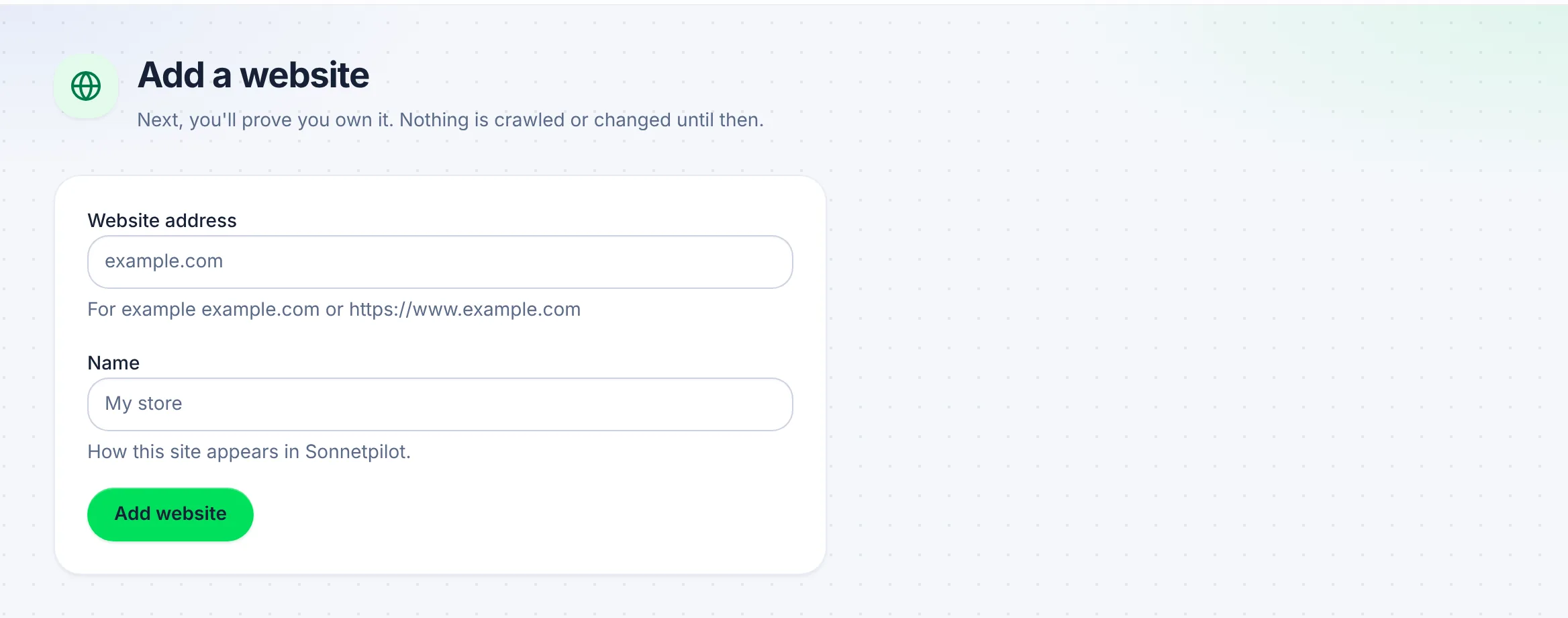
- 1Your website's address, for example https://www.example.com.
- 2An optional name shown in Sonnetpilot.
- 3Adds the site and starts a free, read-only preview audit of up to 25 pages. Full audits and fixes start after you verify it.
Screenshot from the Sonnetpilot app (a new workspace, before any data was collected). Open full size
From sign-up to your first fixes
Step 1: Sign up
Free trial workspace
Step 2: Add website
Public domain
Step 3: Verify
DNS, meta tag or file
Step 4: Audit
Crawl and health score
Step 5: Connect data
Search Console, GA4
Step 6: Fix
Approve, apply, verify
Workspaces
Everything in Sonnetpilot lives in a workspace: its websites, team members, plan and AI credits. Each workspace is completely separate.
- One is created for you, on the free trial, when you register.
- Rename it in Settings.
- Create more from the workspace switcher at the top of the side menu. Agencies usually use one per client.
What happens after setup
Once your site is verified and audited, you can:
- Turn a goal into a step-by-step plan with SEO Plan.
- Ask questions about your data in AI SEO Manager.
- Prepare fixes on Technical SEO.
- Research keywords and write content briefs.
- Check how AI search sees you.
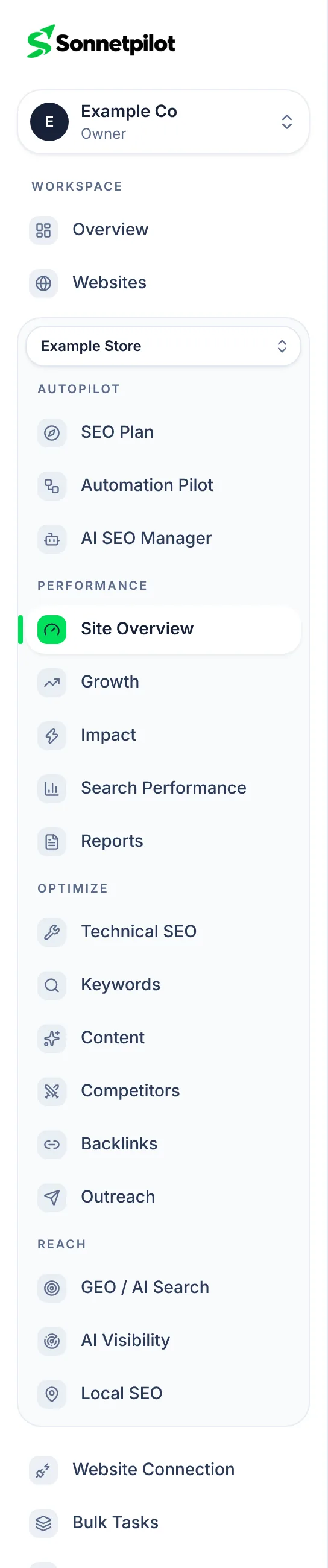
- 1Workspace switcher: shows each workspace’s plan and credits; move between workspaces or create a new one.
- 2The website you are working on. With several sites, switch here and stay on the same section.
- 3Autopilot: SEO Plan, Automation Pilot, Site Editor and AI SEO Manager.
- 4Performance: Site Overview, Growth, Impact, Search Performance, Reports.
- 5Optimize: Technical SEO, Keywords, Content, Competitors, Backlinks, Outreach.
Screenshot from the Sonnetpilot app (a new workspace, before any data was collected). Open full size
Frequently asked questions
How long does Sonnetpilot take to set up?
Most people finish in about 15 minutes. DNS verification can take longer because DNS changes may need a few hours to appear; the meta tag or file methods are usually instant.
Is there a free trial?
Yes. Your first workspace starts on the free trial with one website, two members, 50 AI credits a month and audits of up to 50 pages. You can upgrade on Choose a Plan at any time.
Will Sonnetpilot change my website during setup?
No. Adding, verifying and auditing a website never changes it. Changes are only made after you connect the website and a change is approved by you, or pre-authorized for Autopilot.
Can I add more than one website?
Yes. Each website gets its own workspace, with its own verification, settings, data, team and automation mode. Your plan includes one workspace per website (Agency: 10). Create one from All workspaces → New workspace, which connects the website in the same step.
Related guides
- Verify website ownershipProve you control a website with Google Search Console, a DNS TXT record, an HTML meta tag or a verification file to unlock full audits, fixes and connections.
- Find your way around the dashboardHow the Sonnetpilot side menu is organised: workspace pages, the website switcher and the Start, Autopilot, SEO, AI Search (AEO & GEO), Results and Setup groups.
- Website settings: goals, audience and brand voiceTell Sonnetpilot your markets, SEO goals, audience, brand voice and competitors so audits, plans and AI drafts fit your business.
- Connect your website so fixes can be appliedChoose how Sonnetpilot applies approved SEO changes: WordPress, Shopify, a one-line snippet, GitHub or GitLab, or your own CMS API.
Something unclear or out of date? Tell us and we'll fix the guide.