

Install the Sonnetpilot Snippet
Updated
Quick answer
On Website Connection choose Custom code, then Paste one line of code. Copy the script tag into the head of every page, publish, and press Check: Sonnetpilot confirms it on your homepage. For the best SEO, use a server recipe (Next.js, PHP / Laravel, Node / Express) so the values are in the page HTML.
- Where
- Website menu → Setup → Website Connection → Custom code → Paste one line of code
On this page
How to do it
- 1
Choose the snippet
On Website Connection pick Custom code or anything else, then Paste one line of code.
- 2
Copy the code
Pick Any website, Next.js, PHP / Laravel or Node / Express and press Copy code. Or press Copy instructions for your developer to send a ready-made message.
- 3
Add it to your site
Paste the script before </head> on every page, or add the server recipe, then publish your site.
- 4
Press Check
Sonnetpilot looks at your homepage and shows Found (script), Found (server code), Not found yet, or Couldn't load the homepage.
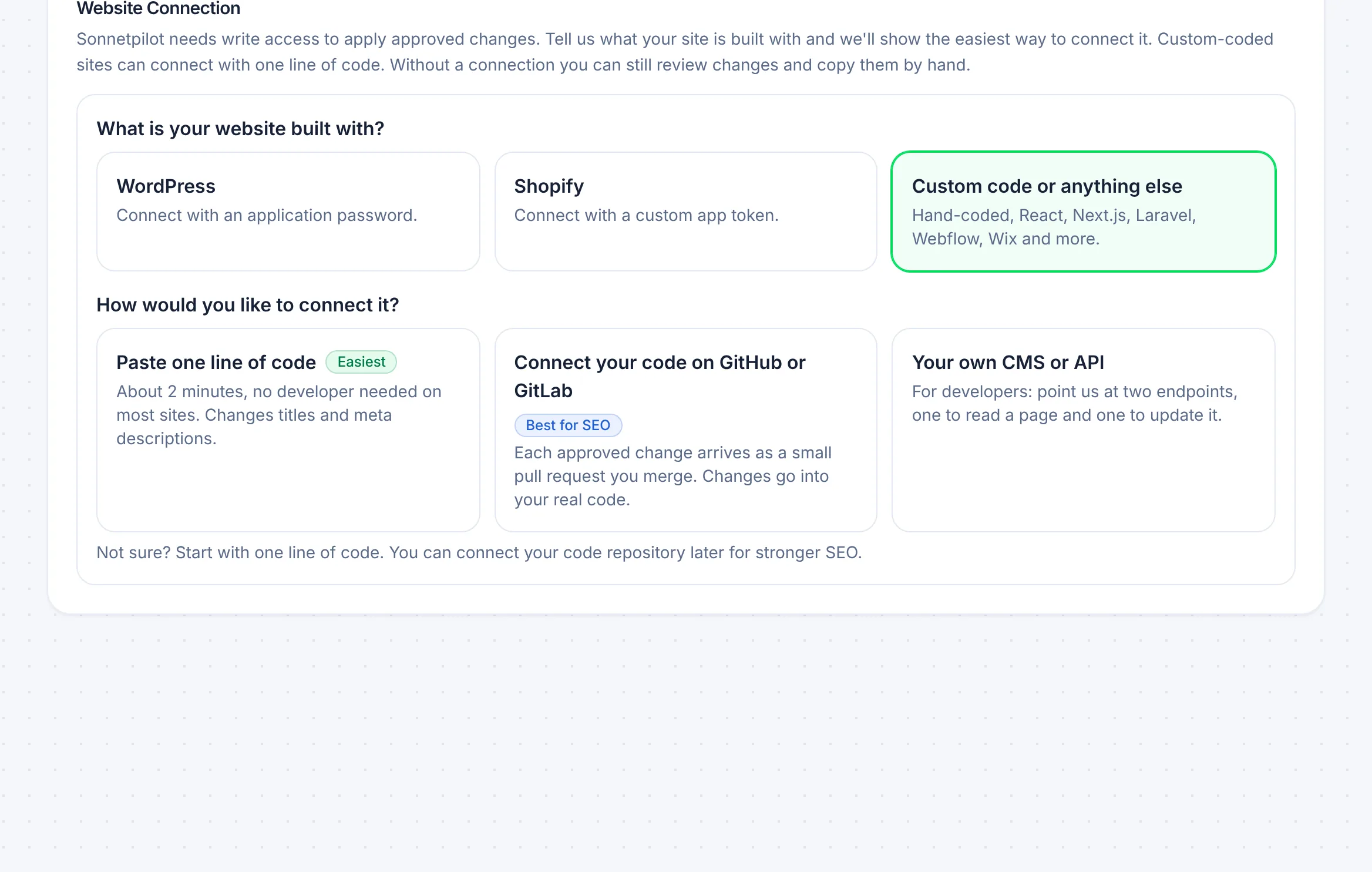
- 1Easiest: add the Sonnetpilot Snippet to your pages.
- 2Best for SEO: approved changes arrive as pull or merge requests.
- 3For developers: map your CMS's read and update endpoints.
Screenshot from the Sonnetpilot app (a new workspace, before any data was collected). Open full size
The one-line script
The script looks like <script src="https://sonnetpilot.com/sdk/v1.js" data-site="sp_…" defer></script>, with your own site key. It only sets text: an approved title and description for the current path. Nothing executable is ever sent. Google renders JavaScript, but some other search and AI crawlers don't, which is why the server recipes are stronger.
Server recipes
Server recipes read /api/sdk/v1/<site key>?path=/the-page, which returns JSON { "title": string|null, "description": string|null }. Keep your current value when a field is null, and print <meta name="sonnetpilot" content="<site key>"> so Sonnetpilot can detect the install.
How snippet changes are verified
A change made through the snippet counts as verified only when that page carries the snippet. Until it's found, the change waits with “The Sonnetpilot snippet isn't on this page yet” and is re-checked every 6 hours for up to 14 days.
Frequently asked questions
Is the Sonnetpilot Snippet safe to add to my site?
Yes. It only receives plain text, a title and a description for the page, and never runs code sent from Sonnetpilot.
Do search engines see changes made by the snippet?
Google renders JavaScript and sees them. Some other search and AI crawlers don't run scripts, so use a server recipe when you can.
Why does Check say Not found yet?
The snippet isn't in your homepage HTML yet. Publish your site after adding it, avoid tag managers, then press Check again.
Related guides
- Connect your website so fixes can be appliedChoose how Sonnetpilot applies approved SEO changes: WordPress, Shopify, a one-line snippet, GitHub or GitLab, or your own CMS API.
- Connect GitHub or GitLabGet approved SEO title and description changes as small pull requests or merge requests in your website's code repository.
- Connect your own CMS or APIPoint Sonnetpilot at your CMS's HTTPS read and update endpoints so approved titles and descriptions are written through your own API.
Something unclear or out of date? Tell us and we'll fix the guide.